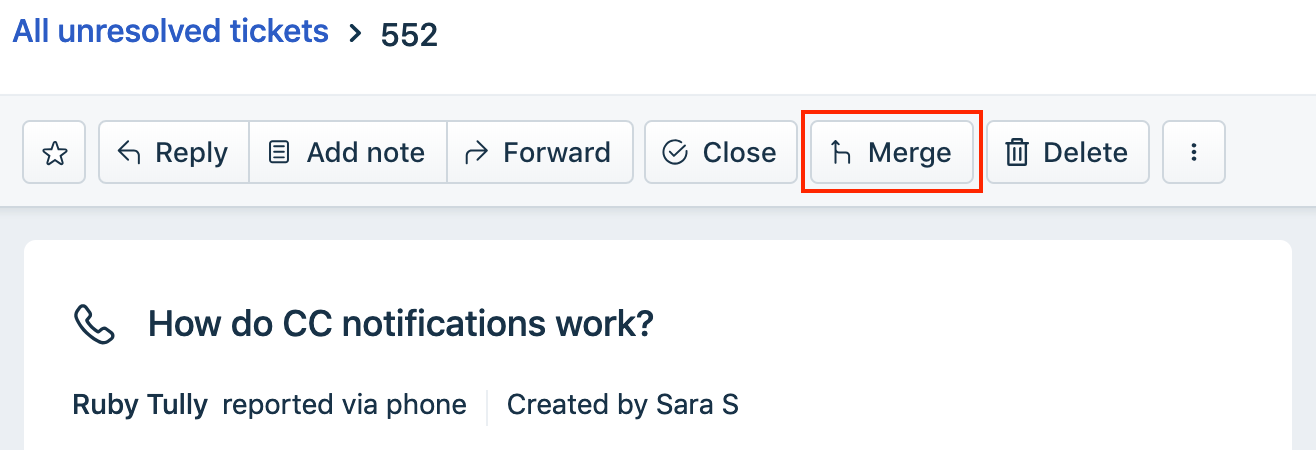
Sometimes, a customer might try to get your attention regarding a particular issue by contacting you through separate channels. Sometimes, the same issue might be reported by different people in the team or someone might accidentally open a new ticket instead of following up on an existing one. To avoid conflicts, you can merge all related tickets together and keep the communication streamlined.
The merge action is irreversible, and causes the following things to happen:
- One of the tickets becomes the primary ticket (you get to choose). The others become secondary.
- All conversations from the secondary tickets are moved into the primary ticket. You can also choose to keep the requesters and CC emails from the secondary tickets in the loop.
- All the secondary tickets are closed.
- All messages are sorted chronologically.
- A note is added to each of the tickets with a link to the primary ticket.
- If the note is public, an email notification (the Agent Adds Comment to ticket notifications under Admin > Workflows > Email notifications) might be sent to the requesters about the merged tickets.
Who can merge tickets?
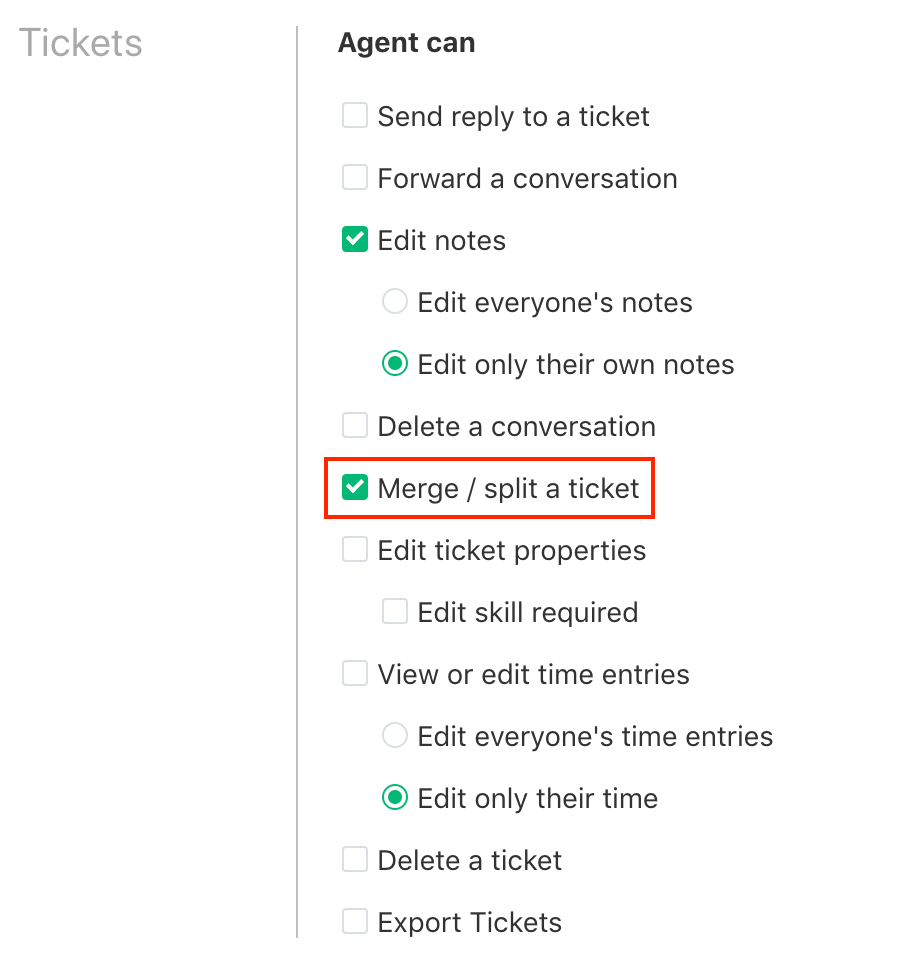
Anyone in your helpdesk with one of the default roles (Account admin, Admin, Supervisor, Agent) will be able to merge tickets. If you have created custom roles, the merge/split ticket option should be checked under Admin > Team > Roles > (Custom role name) for the agent to be able to merge tickets.
How do you merge two or more tickets?
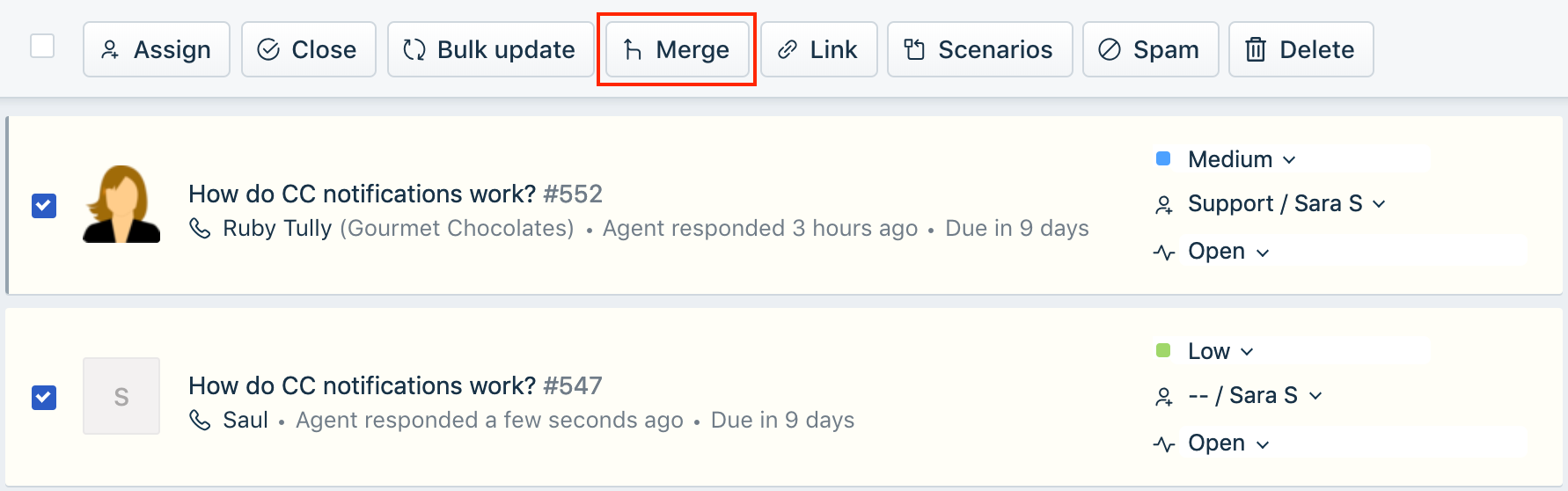
- Go to the Tickets tab, and select the tickets you want to merge from the list using checkboxes.
- Click Merge.
- In the dialog box that pops up, select which one you want to be the primary ticket - a tick will appear indicating that it's been marked.
- If you'd like to remove any tickets from the merge, you can do so by clicking on the - icon next to them in the list. You cannot remove a ticket from the merge if it's been marked as a primary.
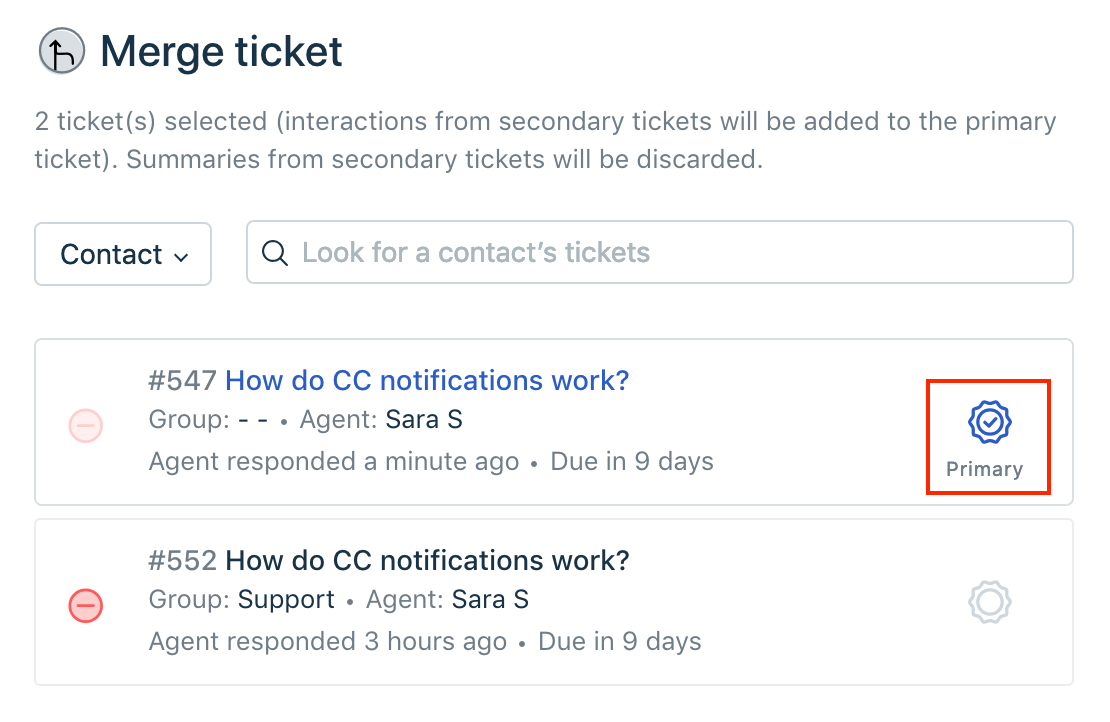
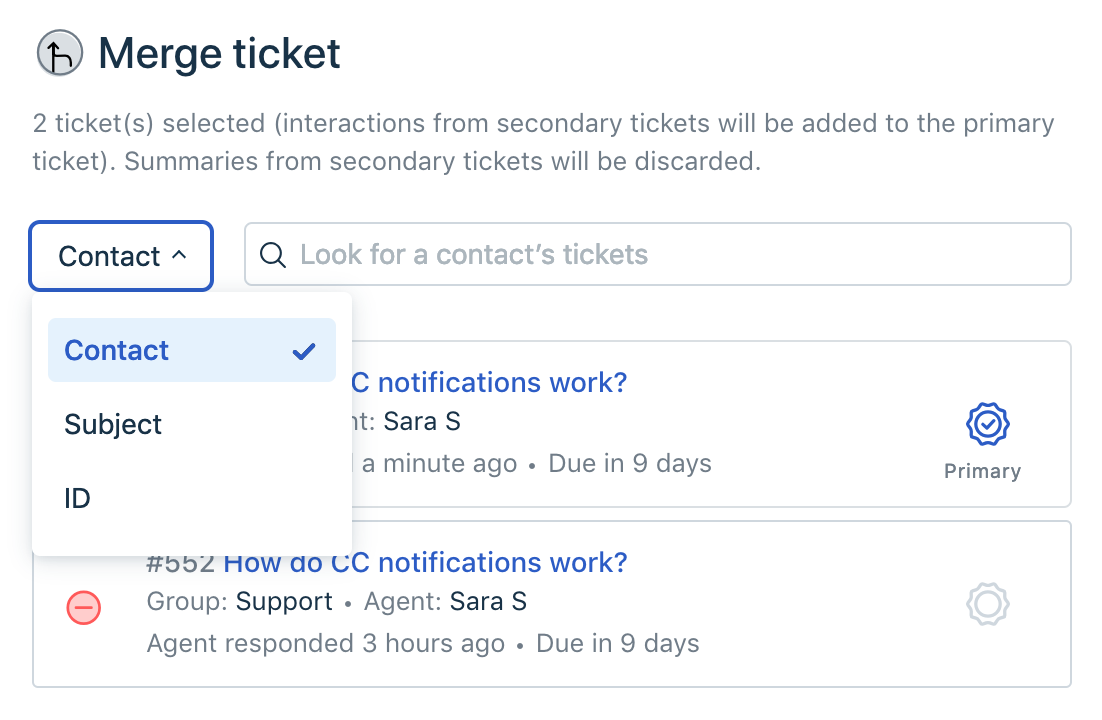
- Similarly, you can use the search box on the right side to look up tickets by either ID, Subject or Contact and add them to the list.
- By default, the requester email and CC email in the secondary tickets will be dropped after the tickets are merged. If you want to make sure that they are in the loop too, you can add them as CC to the primary ticket by clicking on the Add secondary recipients to CC checkbox.
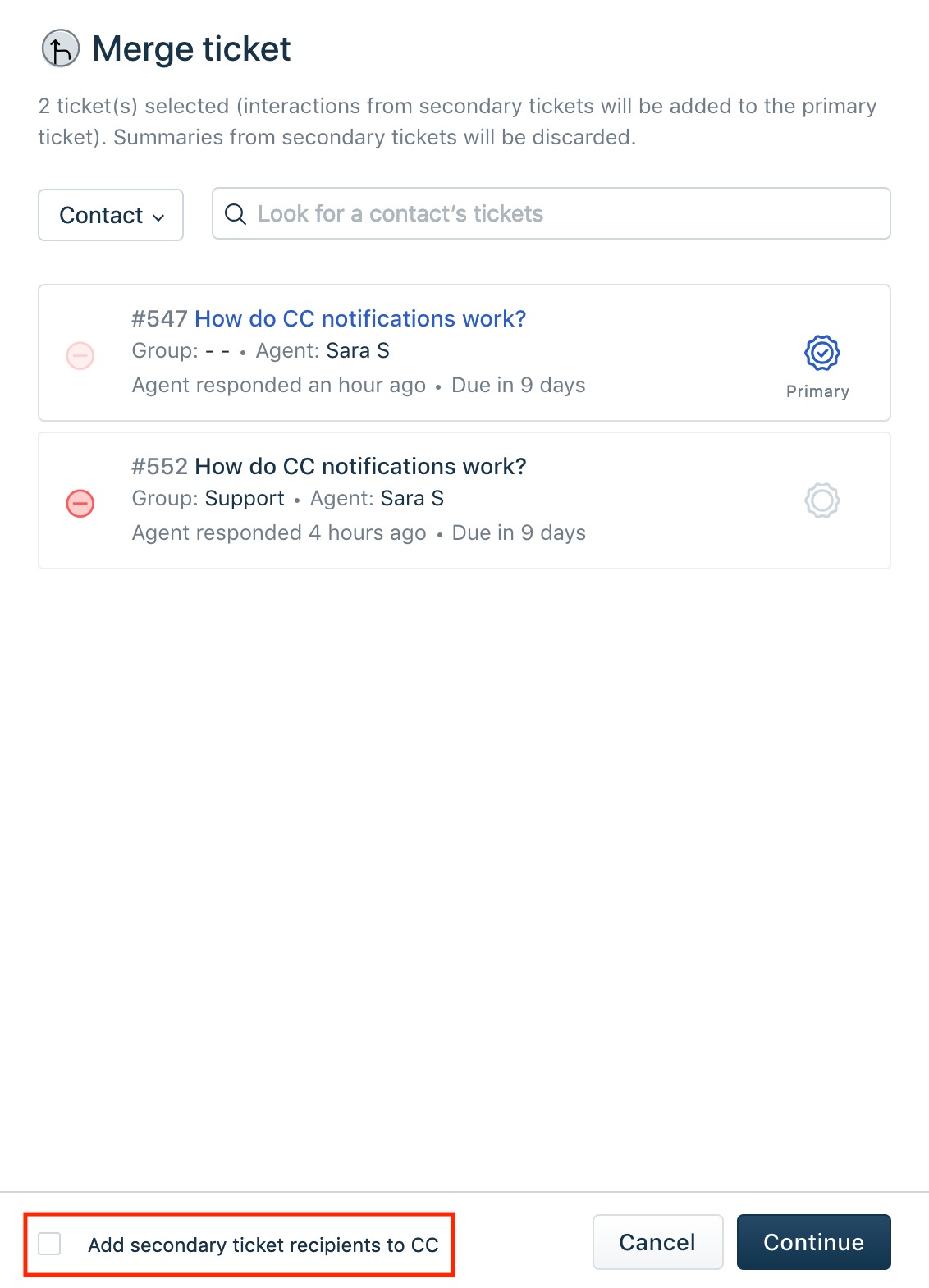
- When you're ready to proceed, click on the Continue button.
- When tickets are merged together, a note is added to the primary and the secondary ticket. You can edit the content in each of them, if necessary, by selecting Edit note. By default, the note will be added as a Private note and the requester won't be notified regarding the merge. However, you can choose to add it as a Public note (visible to the customers) and notify the requester using the Who should see this? dropdown.
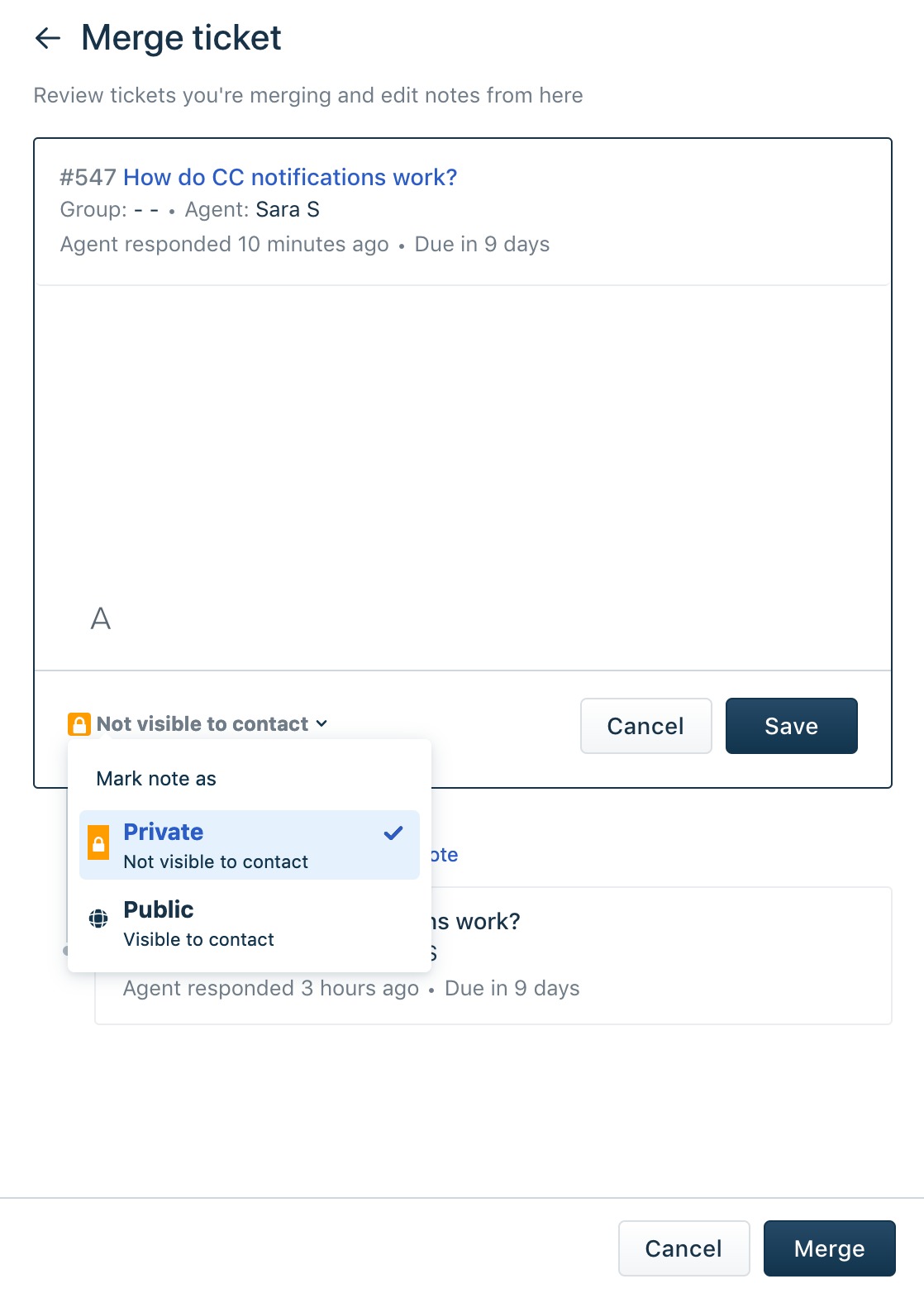
- The merge action cannot be undone. Please make sure that the tickets you have chosen are the right tickets to merge before clicking on the Merge button.
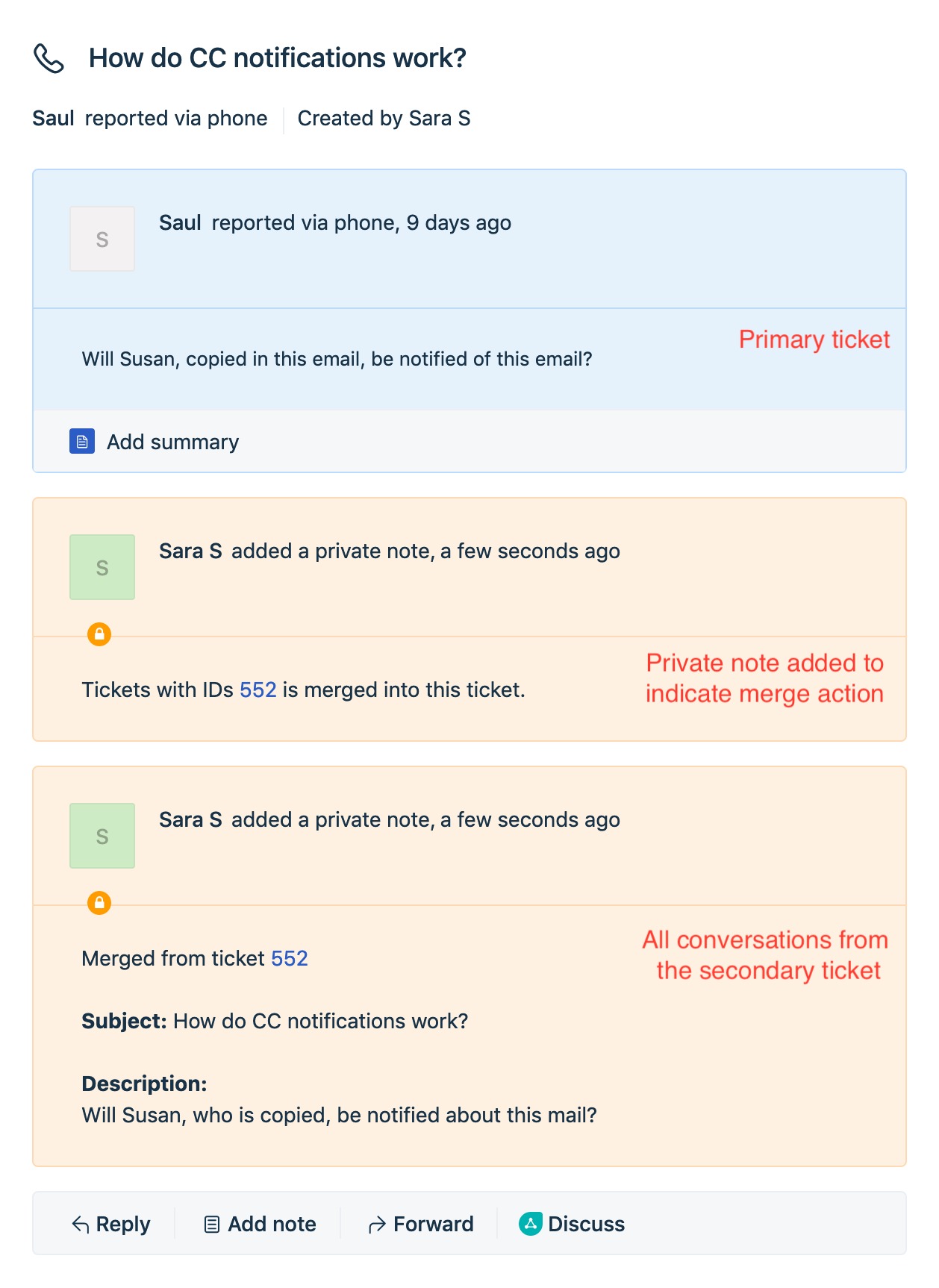
- The secondary ticket will disappear from the ticket list view. When you open the primary ticket, you will be able to see a private note with all conversations from the secondary ticket and the private note added from the step above to indicate that the tickets have merged.
Similarly, you can also open each ticket from your helpdesk and use the Merge function. Since only one ticket is selected in that case, the other ticket(s) that need to be merged can be found using the search option.