Overview
To enhance the security of all SAP Concur users, two-factor authentication (2FA) is mandatory for users who sign in to SAP Concur solutions with a Concur username and password.
When an SAP Concur user signs in to SAP Concur using their username and password for the first time, they will be prompted to setup 2FA.
After they have set up 2FA, users who sign in to SAP Concur solutions with a username and password must use 2FA when they sign in. This typically means that the user will be prompted to enter a one-time 6-digit code generated by an authenticator app each time they sign in to SAP Concur solutions.
This document describes the process and requirements for setting up 2FA, resetting 2FA if needed, and the process of signing in to SAP Concur solutions with 2FA after it has been set up.
User Enrollment in 2FA
The first time a user signs in to SAP Concur solutions with a Concur username and password, they are prompted to enroll in 2FA.
If they do not already have an authenticator app installed on their mobile device or as a browser plug-in, they must download one to complete the enrollment.
The user can enroll either by scanning a QR code, or by manually entering a key.
To enroll in 2FA by scanning a QR code
- On the Concur mobile or web sign in page, enter your SAP Concur username and password.

- The following message is presented:
- “You must set up two-factor authentication to continue sign-in. Use your authenticator app (such as Microsoft Authenticator or Google Authenticator) to scan the QR code below.”
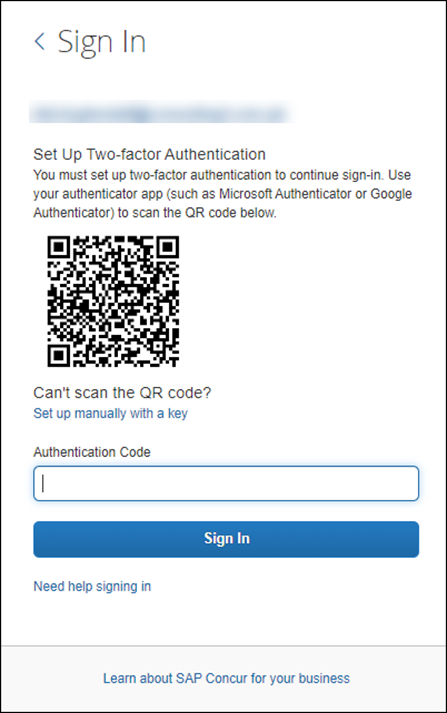
- “You must set up two-factor authentication to continue sign-in. Use your authenticator app (such as Microsoft Authenticator or Google Authenticator) to scan the QR code below.”
- If you are using a mobile device to set up 2FA and have already downloaded an authenticator app, launch the authenticator app.
- If you do not yet have an authenticator app, download one and then proceed to setup 2FA.
- If you do not have a mobile device or prefer not to use one for this process, you can use an authenticator app in a web browser.
- Follow the steps or prompts from the authenticator app to scan the QR code on the Set Up Two-factor Authentication page and generate a 6-digit code.
- The steps vary depending on which authenticator app you are using.
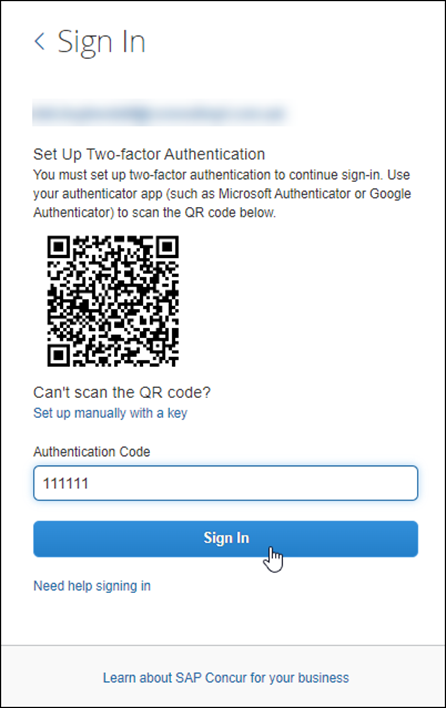
- On the SAP Concur Sign In page, enter the 6-digit code into the Authentication Code field in the Set Up Two-Factor Authentication section and then click Sign In.