Step 1: Locate an Open Agent ID
NOTE: Creating EPR's in Sabre requires the CREATE keyword to be in your EPR.
The CREATE keyword can only be added by Sabre: https://central.sabre.com/s/create-agent-request
Before we do anything we need to find an available Agent ID.
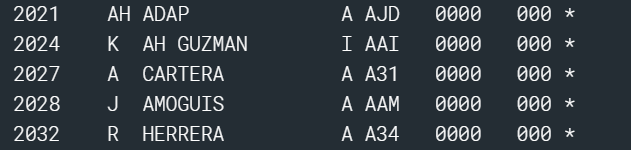
Type H*CST into the command bar to view all existing agents.
- We always use 4 digits, like 4141, and 4242, and 4343, etc.
- 2000 series is reserved for our Afterhours (Casto Travel) team members.
- Once you have a number to use, proceed to the next stage.
Step 2: Create Agent EPR
Sabre Documentation: https://central.sabre.com/s/article/how-to-create-an-employee-profile-record-epr
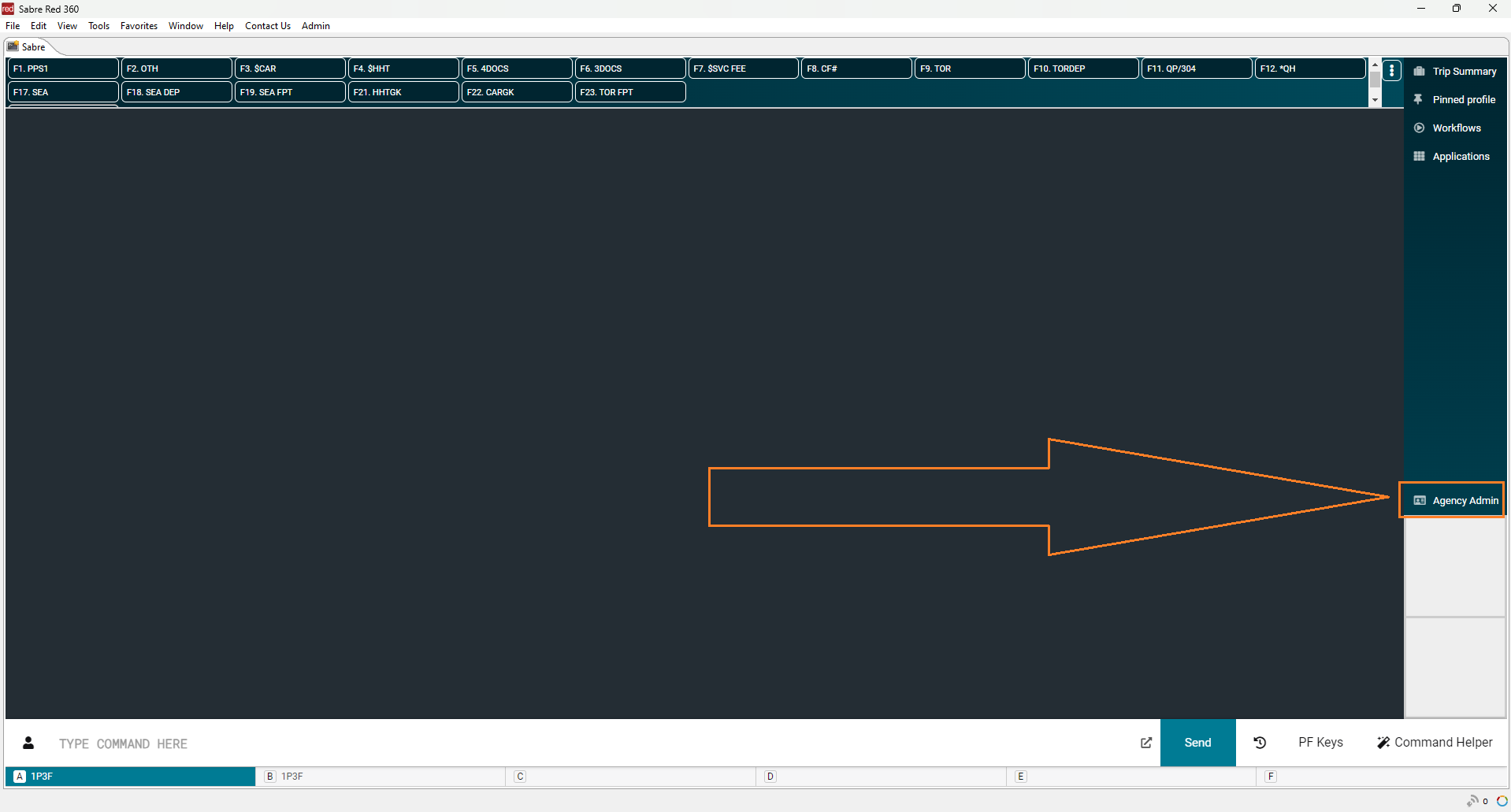
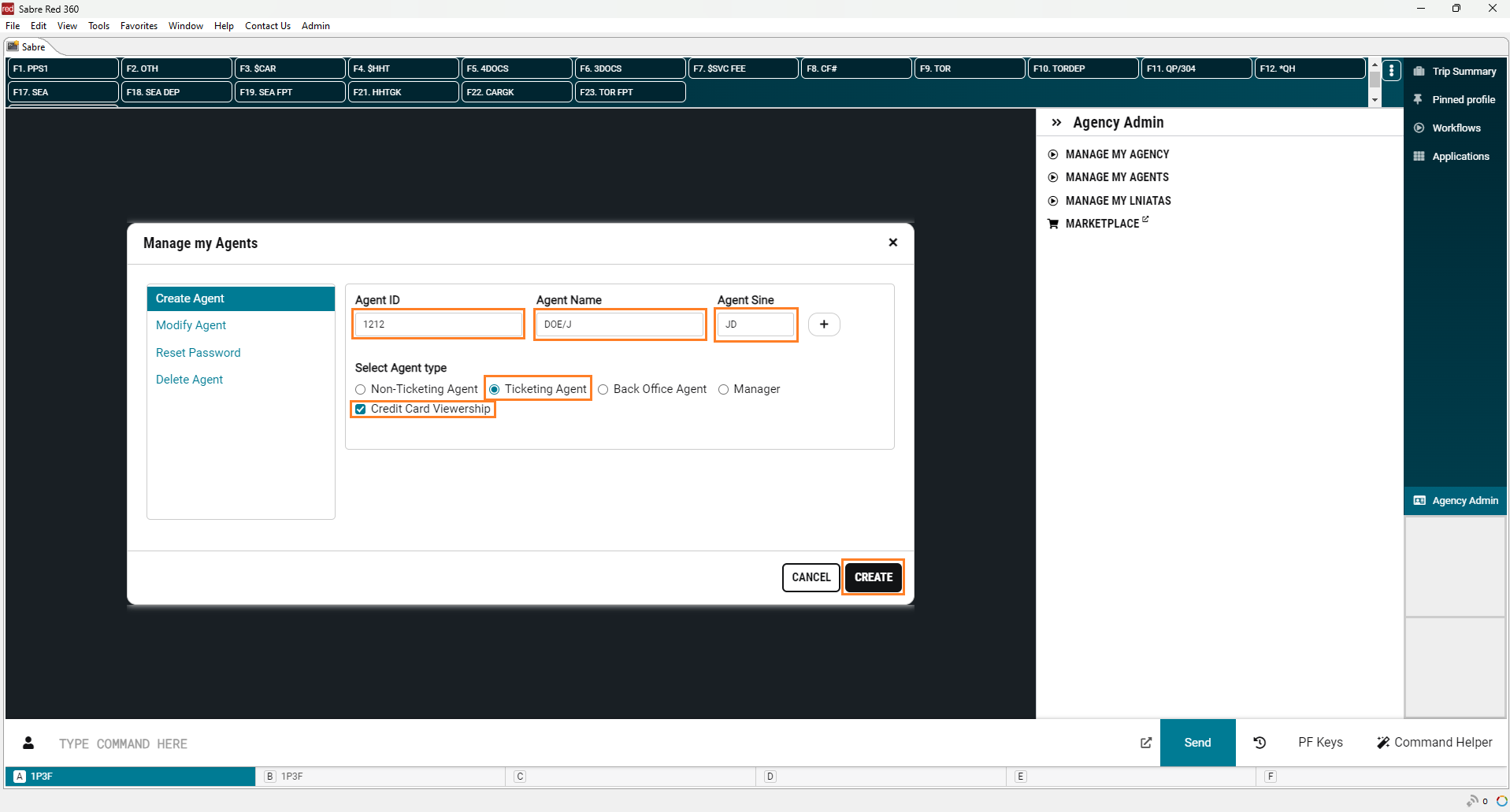
- In Sabre open Agency Admin:
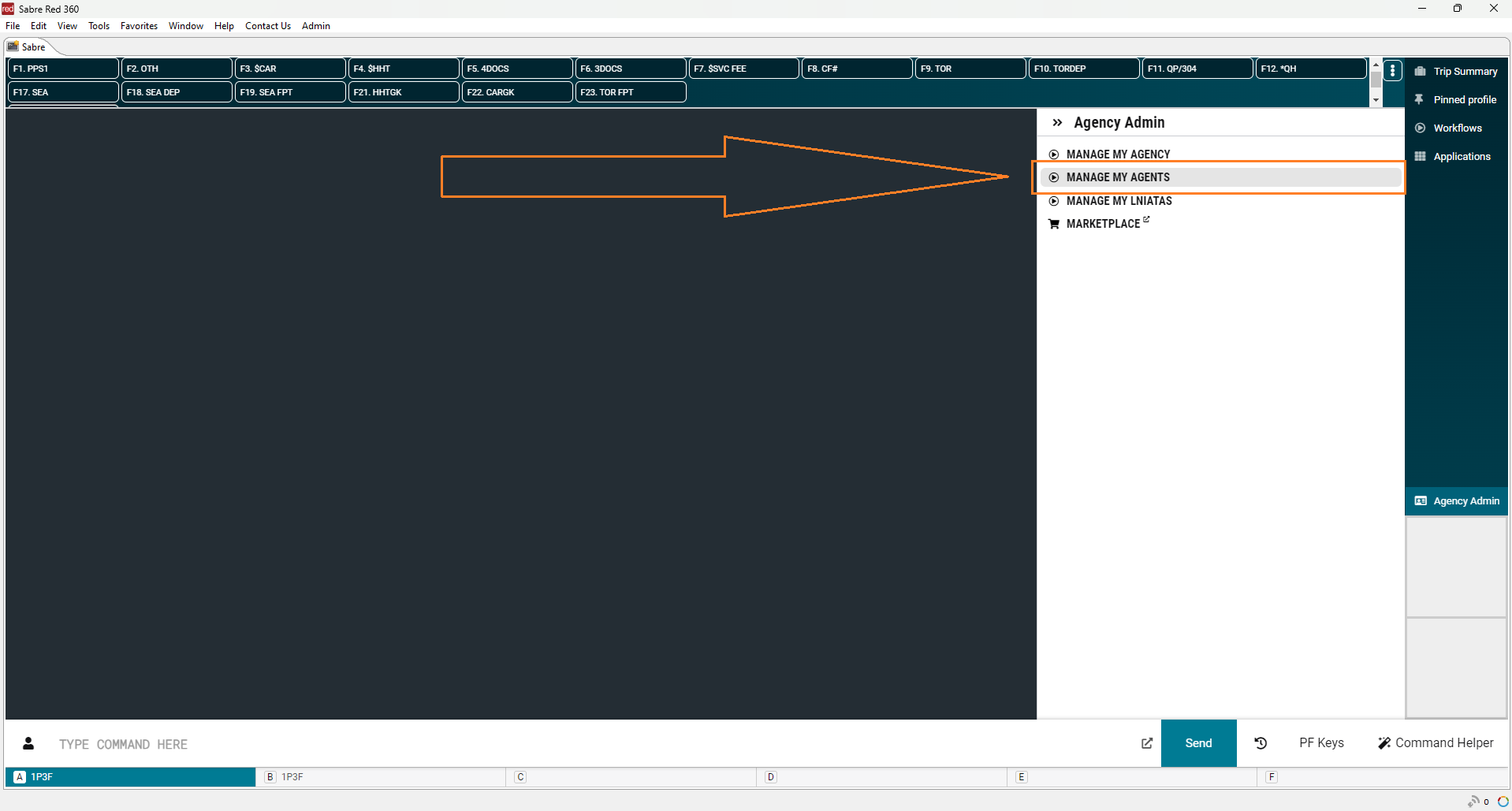
- Then Manage My Agents:
- Enter their Agent ID (from step 1) and Agent Name, and Agent Sine on the Create Agent tab.
- The Agent Sine will be provided by the accounting department.
- Agent Type = Ticketing Agent (if they're allowed to issue tickets).
- Enable Credit Card Viewership.
- Click Create.
Step 3: Add Keywords (Modify)
Sabre Documentation: https://central.sabre.com/s/article/how-to-modify-an-employee-profile-record-epr
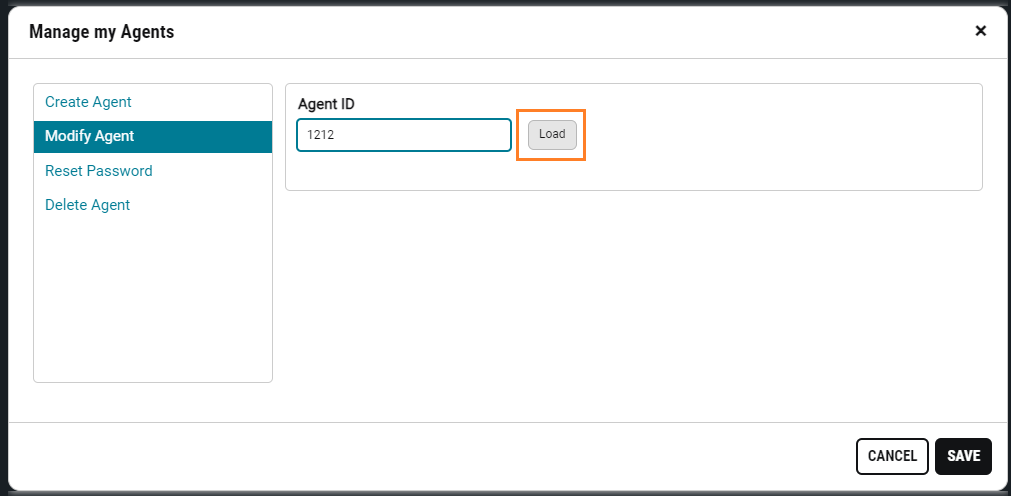
- Click the Modify Agent tab, and enter the Agent ID.
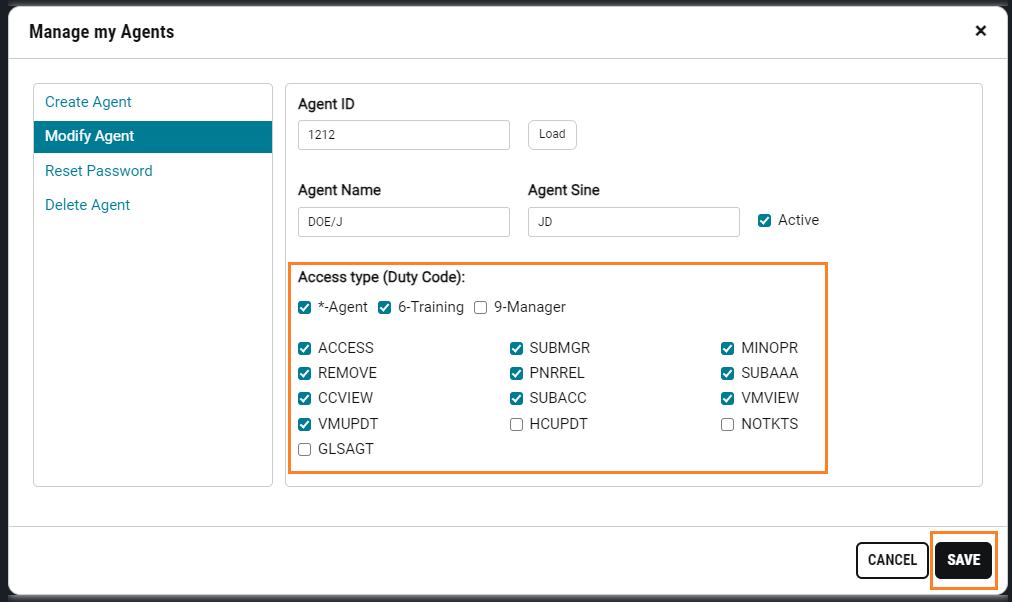
- Enable ACCESS, SUBMGR, MINOPR, REMOVE, PNRREL, SUBAAA, CCVIEW, SUBACC, VMVIEW, and the VMUPDT duty codes, and click Save
Step 4: Adjust Automatic Sign-Out Timer (ASO)
We want to extend the automatic sign out threshold as far as we can so when our advisors are working outside of Sabre they are not logged out and required to sign back in multiple times each day. 240 minutes is the longest we can set.
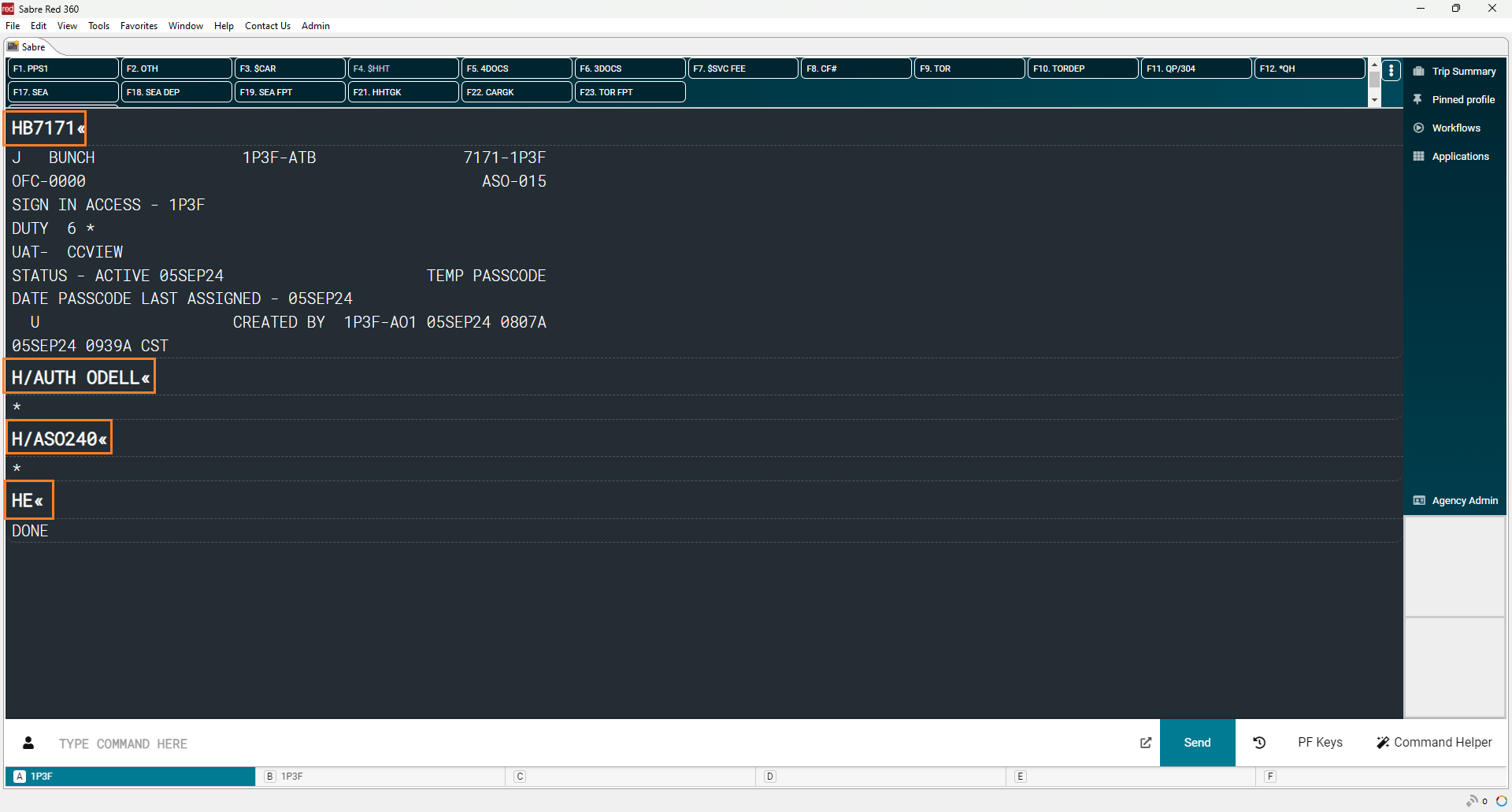
- Type HB[AGTID] into the command bar. NOTE: (replace [AGTID] with the actual agent ID. EX: HB1212).
- Type H/AUTH [NAME] into the command bar NOTE: (replace [NAME] with your name.
- Type H/ASO240 into the command bar. NOTE: 240 is the maximum.
- Type HE into the command bar to End.