
- Navigate to the Admin > Agents page: https://support.travelquestnetwork.com/a/admin/agents/filter/active
- Click on New Agent in the top bar.
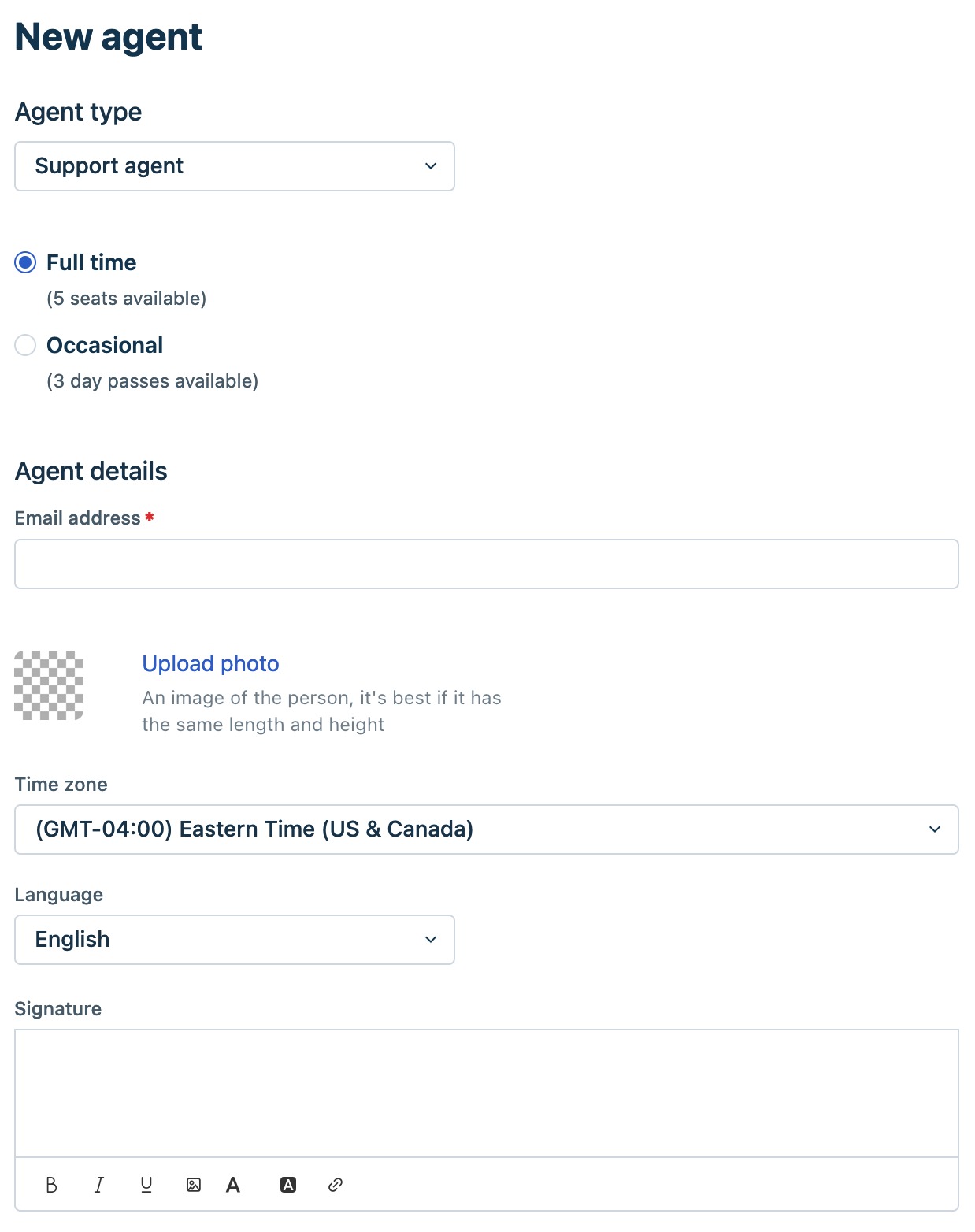
- From the Agent type dropdown, select Support agent and choose whether they’re Full time or Occasional.
- If you get an message about needing to purchase more licenses click here for more information.
- Under Agent details, provide the following information:
- (Required) Email address: Provide the agent’s email address.
- If the provided email address is not in your contact book, you will be prompted to optionally provide a Name, Phone number, Mobile number, and Job Title for the user.
- If the provided email address is already in your contact book, you’ll receive an error message. See below.
- Upload photo: Click to add a profile picture of the agent.
- Time zone: Choose your agent’s time zone.
- Language: Choose the agent’s portal language.
- Signature: Customize the agent’s email signature.
- Our email signatures are centrally managed through Opensense. We'll use what is called the "stamp" in Freshdesk since the from address is a shared mailbox and we want the recipient to see the user details. More information on this can be found here: .
- Use this format:
[[#]]
Name: Employee Name <-replace with actual name
Title: Job Title <-replace with actual tite
Phone: +1 Phone Number <-replace with actual phone number
Email: Email Address <-replace with actual email address
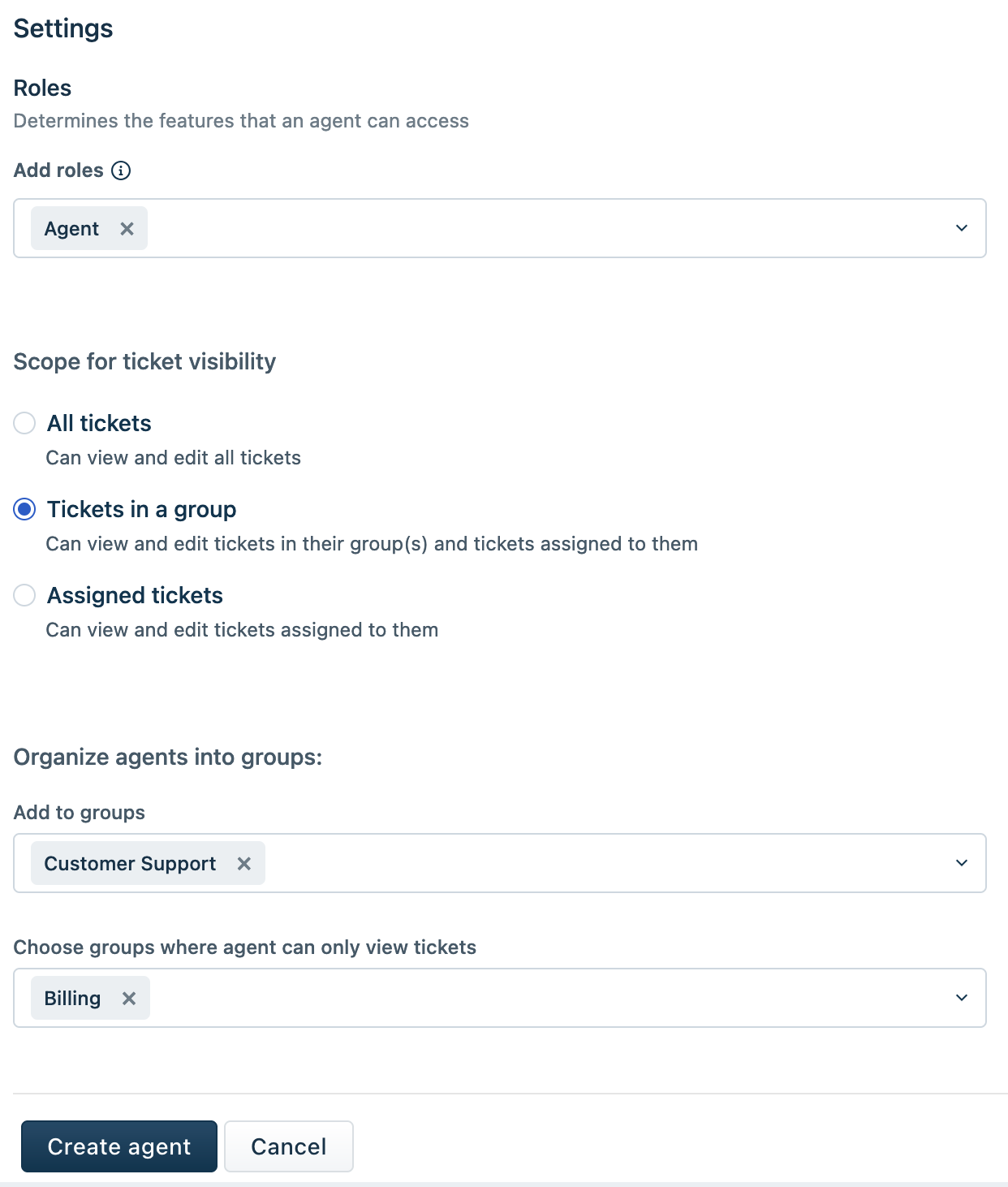
[[#]] - Under Roles, choose the roles to assign to the agent.
- For Staff use Support Staff
- For Managers use Leadership
- For Admins use Administrator
- Under Scope, choose the appropriate option:
- All tickets: The agent can access all tickets in the helpdesk. [This is our default]
- Tickets in a group: The agent can only access tickets assigned to the groups they’re a part of.
- Assigned tickets: The agent can only access their assigned tickets.
- Under Groups, choose the groups to which the agent should be added.
- If you select the "Tickets in a group" scope, you can add them to groups without granting edit access.
- Choose the Support Channels
- Clicking Phone will create them a user account in Freshcaller at the same time.
- Clicking Chat will create them a user account in Freshchat at the same time.
- Click Create agent.
Important: If the provided email address is already in your contact book, you’ll see an error message stating “Email has already been taken. View User.” Click View User to go to the Contact Profile page. Click Convert to Agent to bring up a dialog, select the type of agent, and click Convert.Agent activation email and password
Once you successfully create the agent in Freshdesk, they will receive an activation email. They can use that email to log in and set the password for their Freshdesk account. You cannot set a static password - agents must set their own passwords using the activation email.
- (Required) Email address: Provide the agent’s email address.
Freshdesk - Creating User Accounts Print
Created by: Odell Duppins
Modified on: Thu, Aug 22, 2024 at 11:59 AM
Did you find it helpful? Yes No
Send feedbackSorry we couldn't be helpful. Help us improve this article with your feedback.