
- Sign in to Office 365 Admin with your admin credentials.
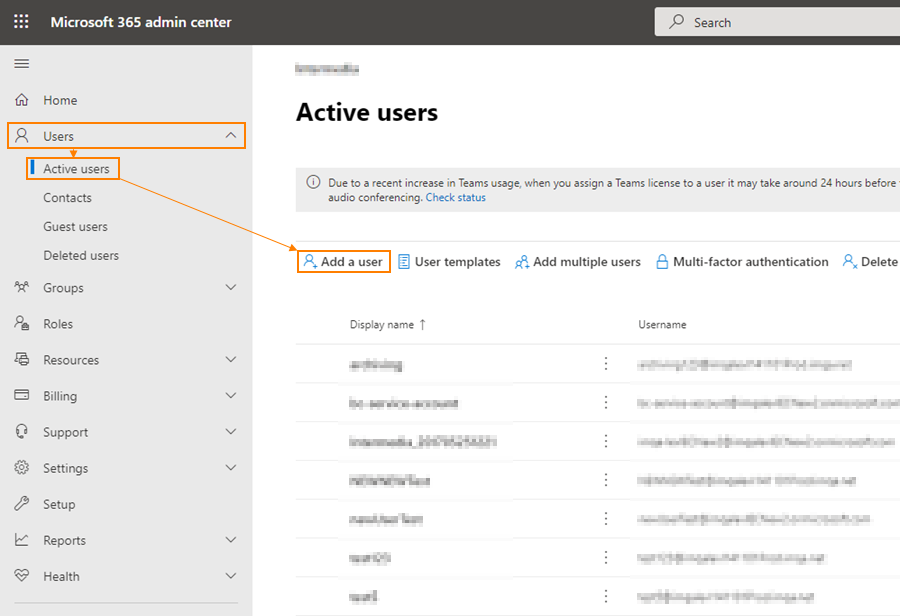
- Navigate to Users > Active Users > Click Add a user icon.
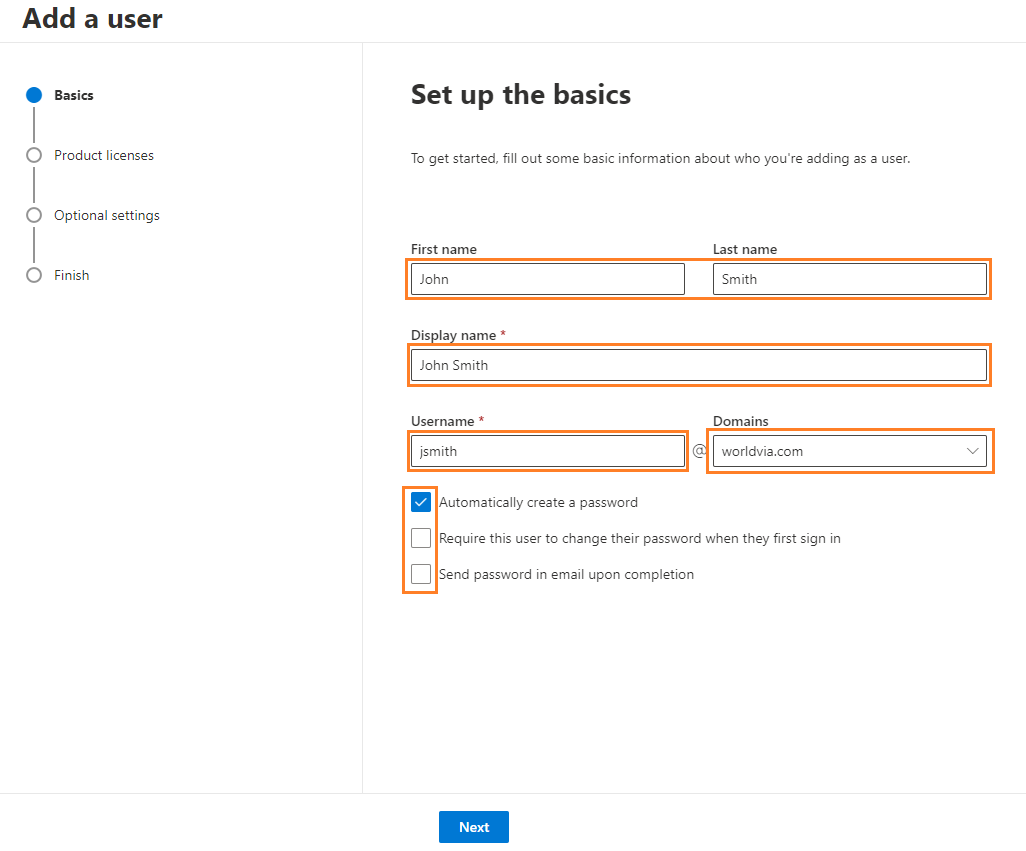
- On Set up the basics page enter user details. Specify First name and Last name, add Display name, Username, and choose the correct Domain as specified by the manager. Then, click Next.
 Note:
Note:- Password is auto-generated for the user by default. If you want to create a different password, uncheck Automatically create a password and then type a password that meets the requirements listed to the right from the password field
- You'll later be signing in as the user, so uncheck the box next to Require this user to change their password when they first sign in. Otherwise you'll have to reset their password again later on.
- Uncheck Send password in email upon completion, you will only be provided with the user's temporary password at the end of the user's creation wizard which we will change later.
- On Assign product licenses, select Microsoft 365 Business Premium and and click Next.
Note: We order new licenses from SACA Technologies/IronOrbit. If no licenses are available open a ticket with SACA via email at support@ironorbit.com and ask them to add additional 'Microsoft 365 Business Premium' licenses to our tenant. There is a cost per license so only have them add as many as you need, no extras!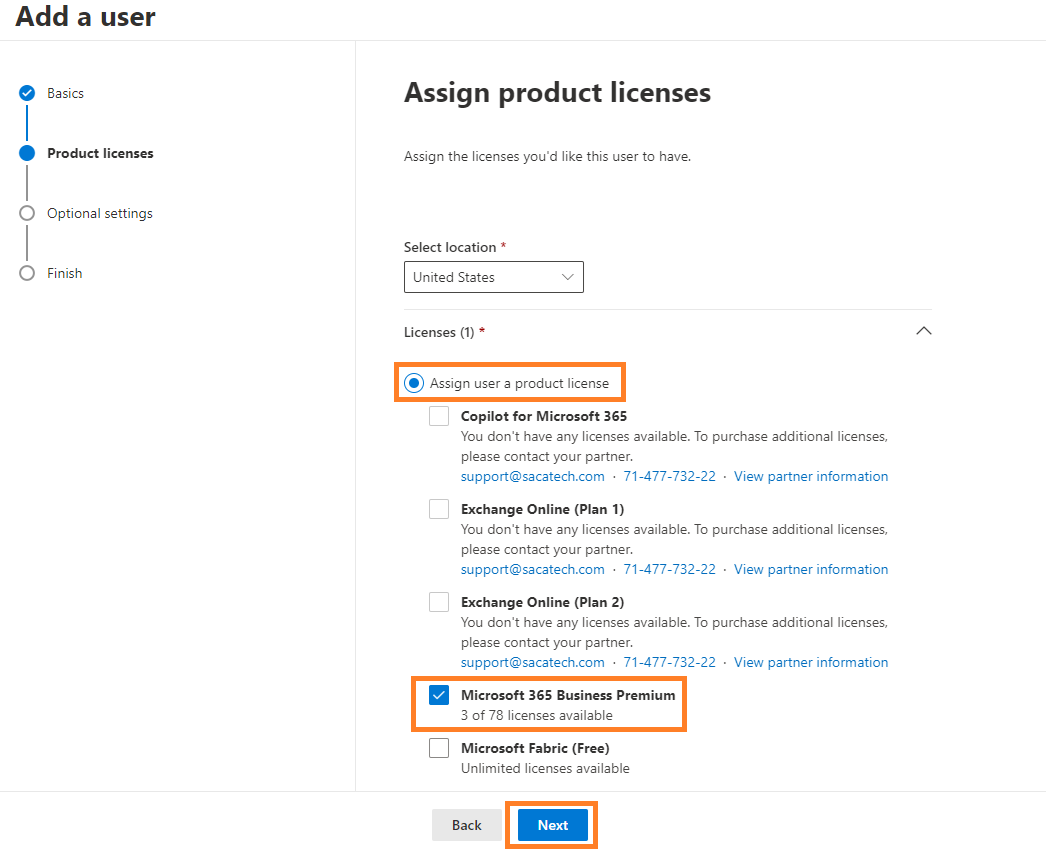
- On the Optional settings page, you can assign roles and specify additional information for the user.
By default, the user has User access to the portal (no admin access). To assign administrative roles, check Admin center access radio button, and check the required roles.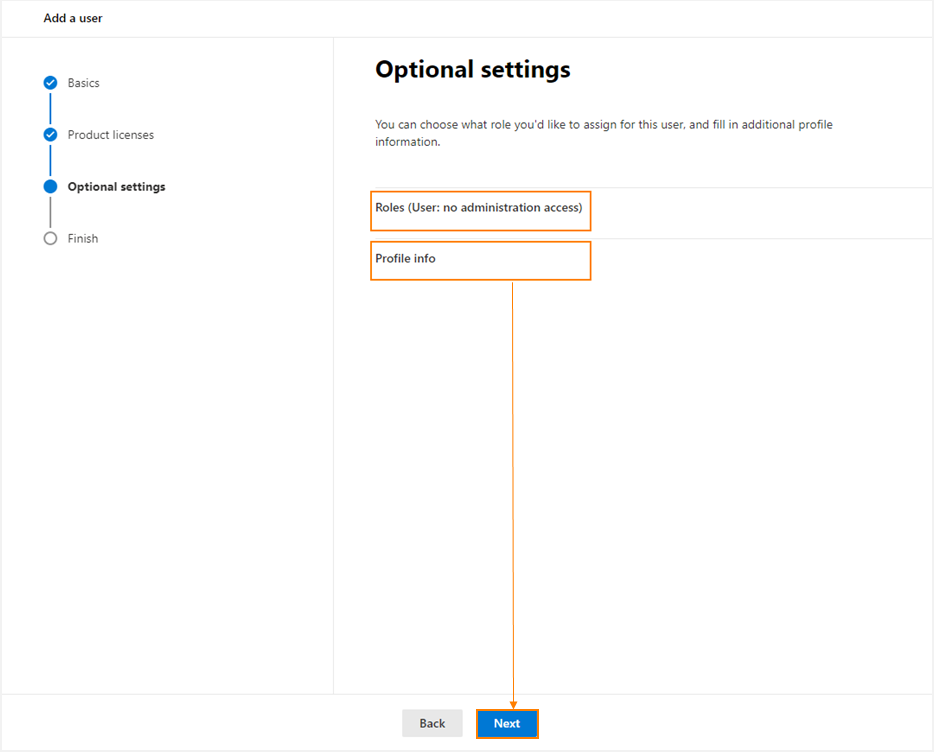
Note: There are different types of administrative roles in Office 365 - please check this Microsoft article for full list of roles and their permissions.
Under Profile info, you can add additional information, such as phone numbers, address, job title, etc.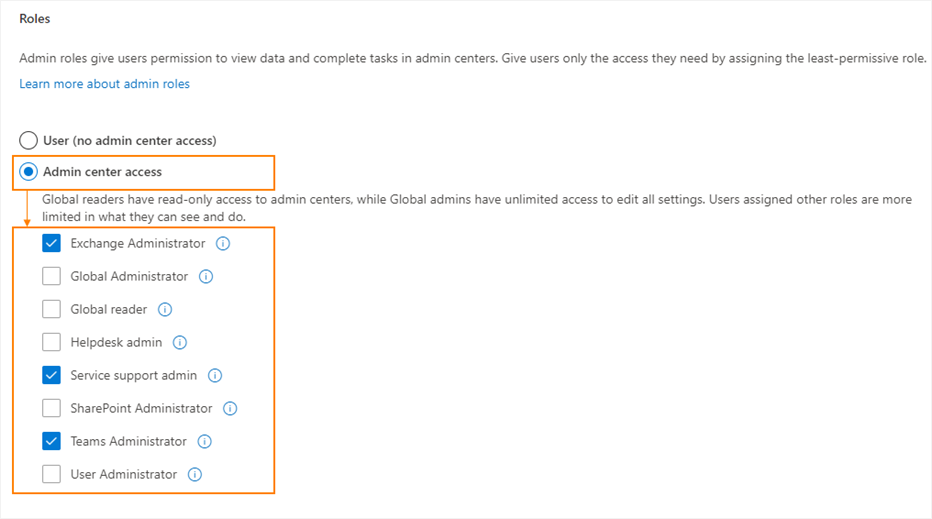
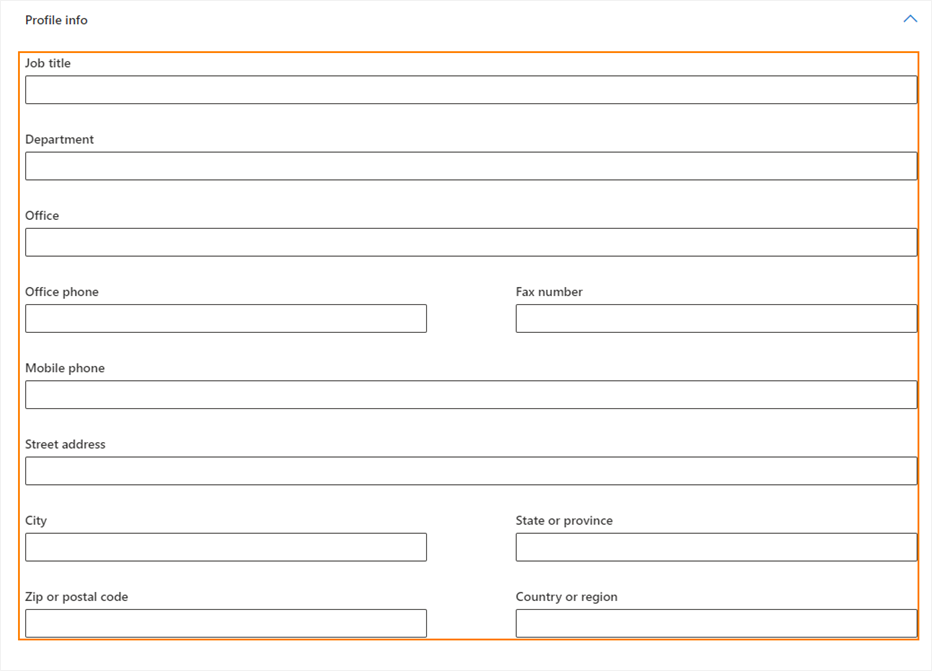
- Click Next to proceed.
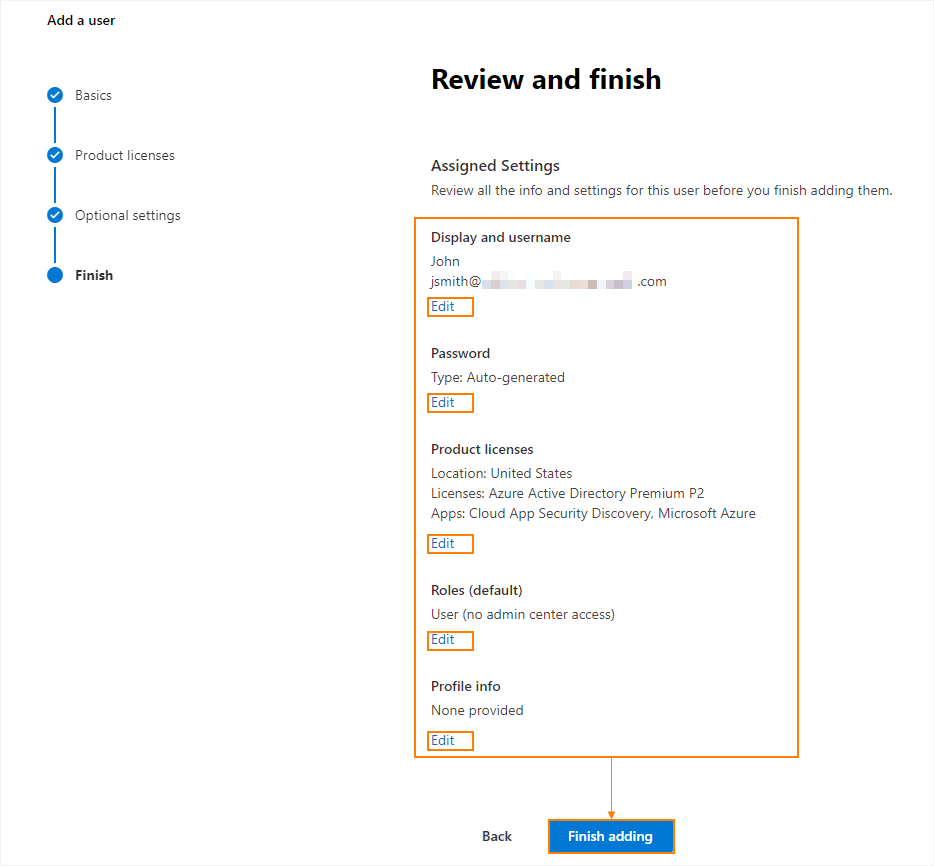
- On Review and finish page, you can review all the previous data and information for the user. To change specific settings, click Edit to change the required settings. Click Finish adding to create a user.
- Confirmation message will appear with the Username, Display name, Password, and License type. Also, the email address to which the password has been sent will appear, if the option was chosen previously.
Note: you can save the settings (licenses, roles, domain, password settings) as a template when creating users in the future. Enter the template's name and description, and click Save as templatebutton below the confirmation message.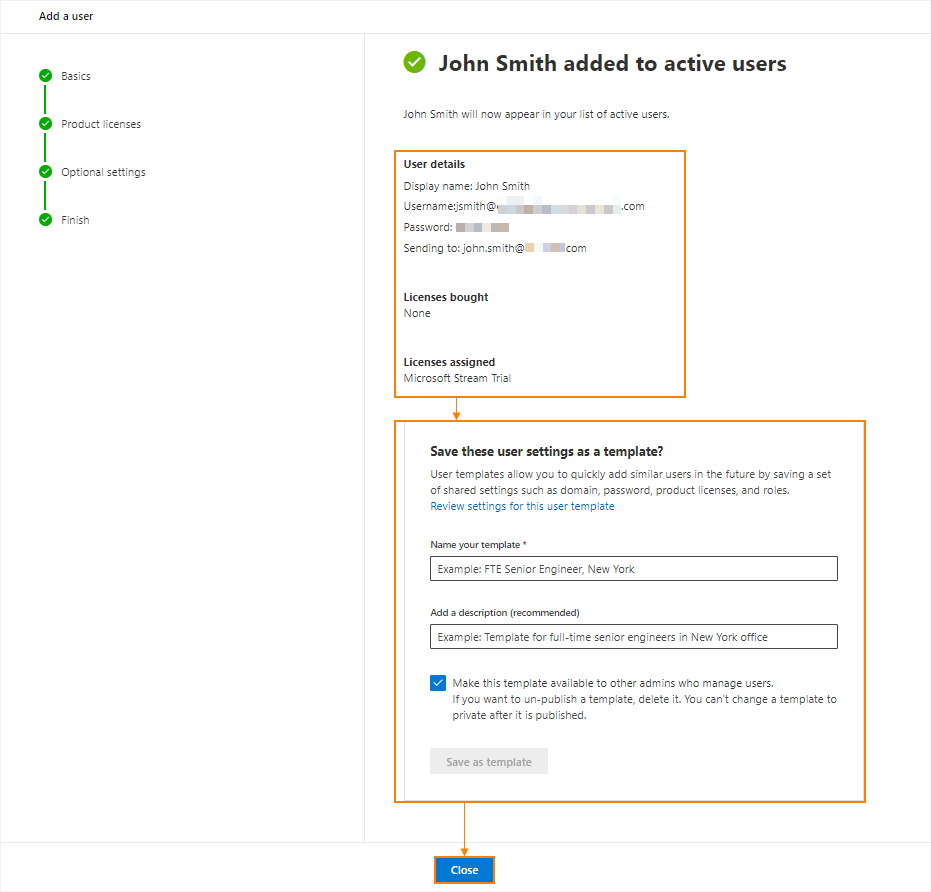
- Click Close to leave the user's creation wizard.
Microsoft Office 365 - Creating User Accounts Print
Created by: Odell Duppins
Modified on: Thu, Aug 22, 2024 at 1:43 PM
Did you find it helpful? Yes No
Send feedbackSorry we couldn't be helpful. Help us improve this article with your feedback.