
- Navigate to the Microsoft 365 admin center.
- Click on ‘Teams and groups’ in the left navigation pane.
- Select 'Shared mailboxes' to view the list of shared mailboxes in Microsoft 365.
- Select the desired shared mailbox in the list of Exchange Online shared mailboxes.
- Click Edit under Members.

- Click Add Members
- Search for the user by name or email address, and click the checkbox next to their name
- Note: You can add multiple users at a time if needed.
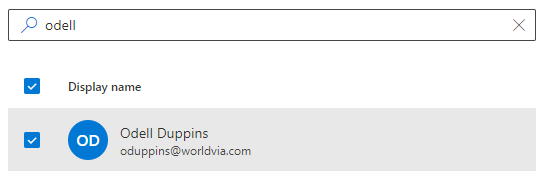
- Note: You can add multiple users at a time if needed.
- Click Add

- Done! Repeat these steps for any additional mailboxes.

Microsoft Office 365 - Granting Access to Shared Mailboxes Print
Created by: Odell Duppins
Modified on: Thu, Aug 22, 2024 at 3:01 PM
Did you find it helpful? Yes No
Send feedbackSorry we couldn't be helpful. Help us improve this article with your feedback.