
Travel advisors with Safe Harbors receive a weekly sales report from accounting. We set this up for them in Grasp DATA.
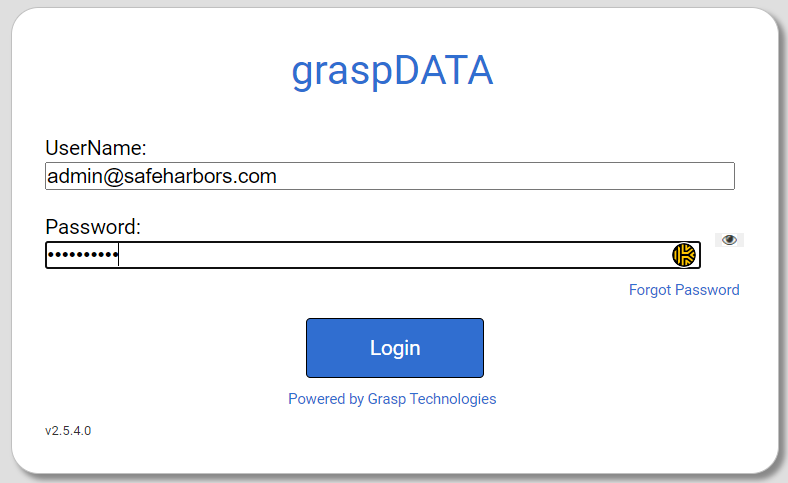
- Log into Grasp DATA using the admin@safeharbors.com account.
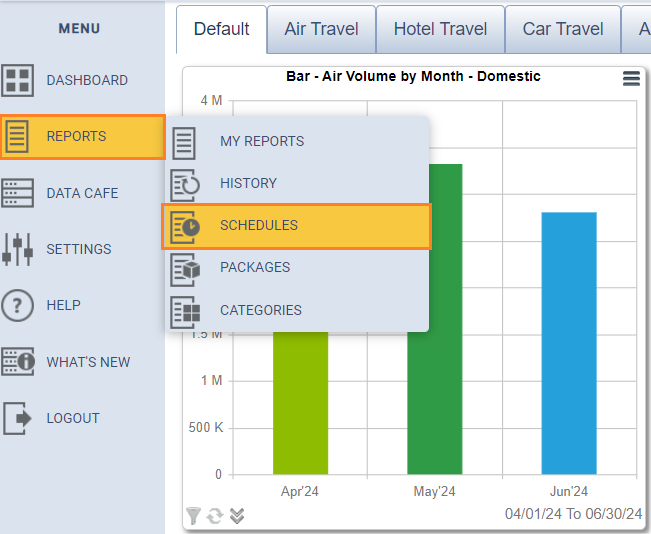
- Click REPORTS on the left menu and then SCHEDULES.
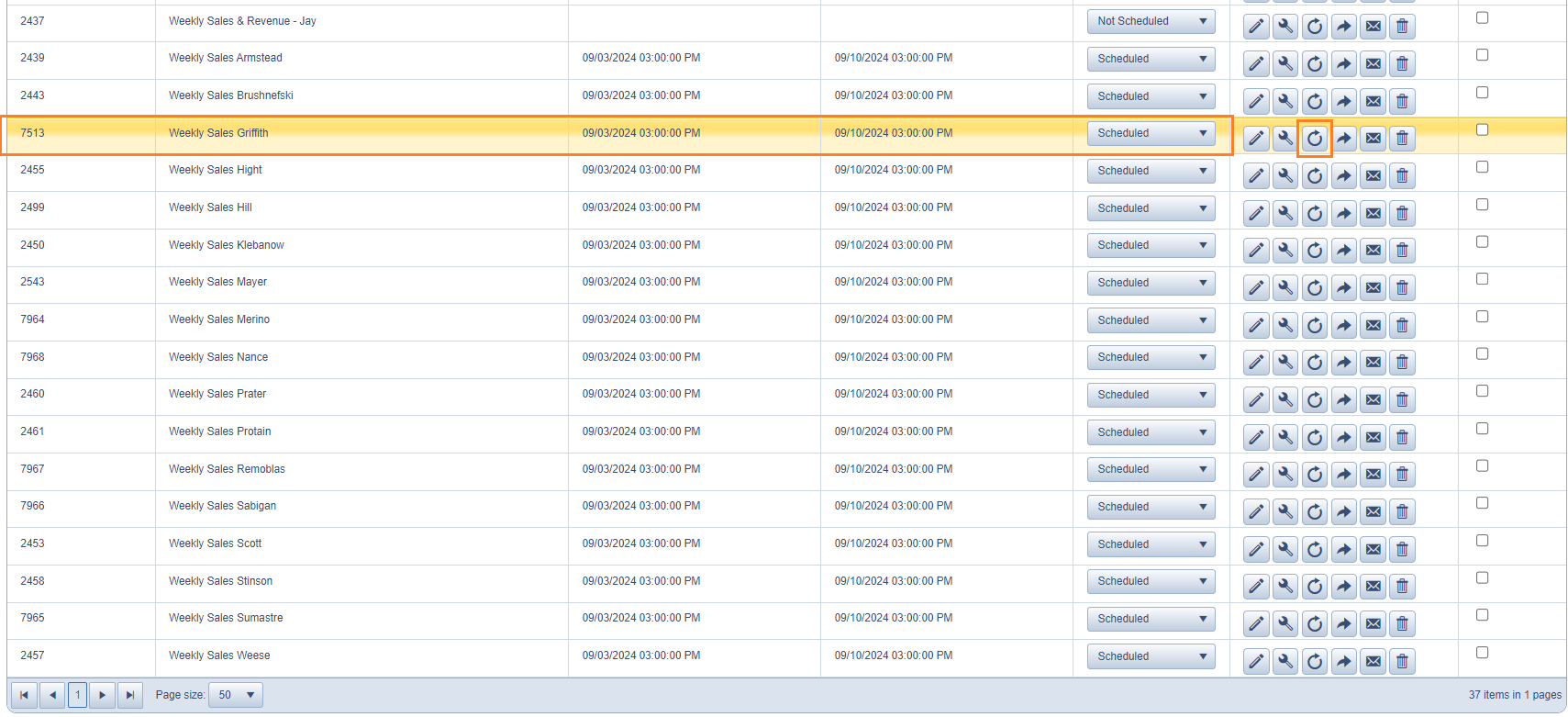
- Scroll to the bottom of the list and you'll see our current list of "Weekly Sales" reports. Choose any one of them to copy (we will edit later) and click the circle icon with an arrow.
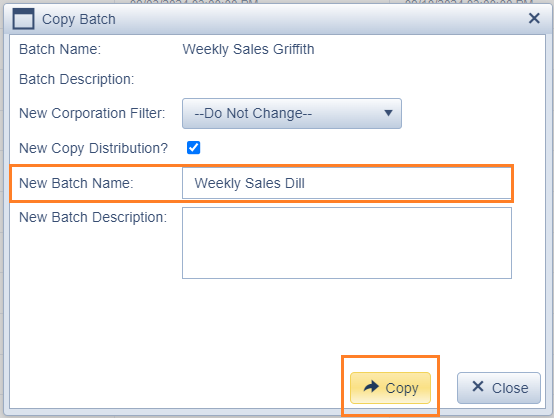
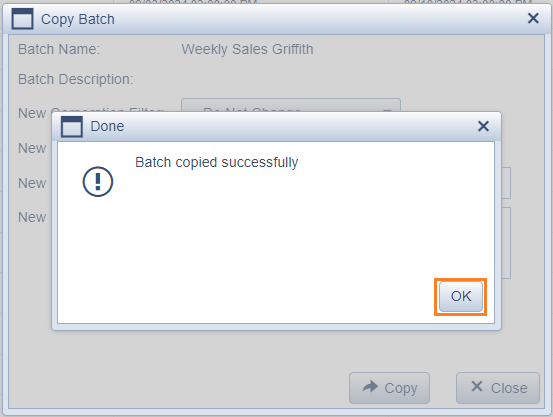
- The Copy Batch window appears. Enter a name for the new Batch and click copy. Please follow the existing format of "Weekly Sales" followed by the agents last name.
- Click OK.
- Next, refresh the page, and locate the new batch. Click the pencil icon to edit.

- Click the pencil icon inside the Edit Batch screen to edit the report filters.

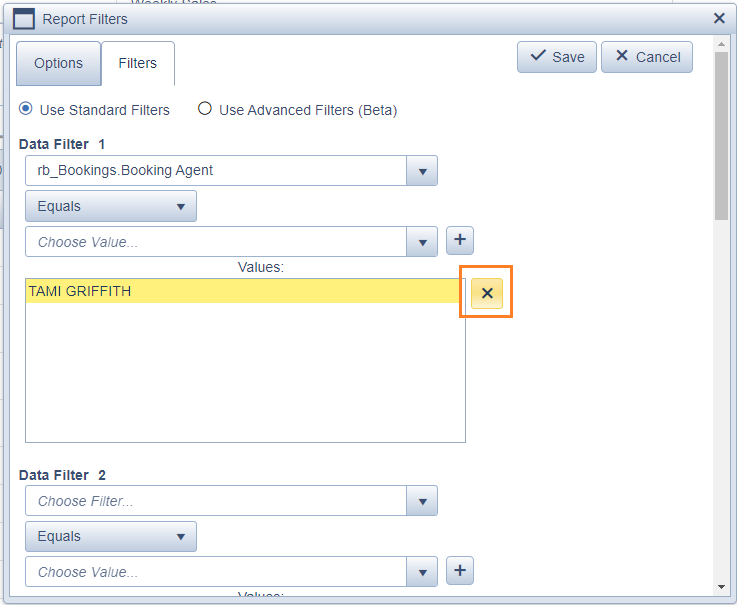
- Switch to the Filters Tab, and select the existing agent from the copied batch, and click the X to remove.
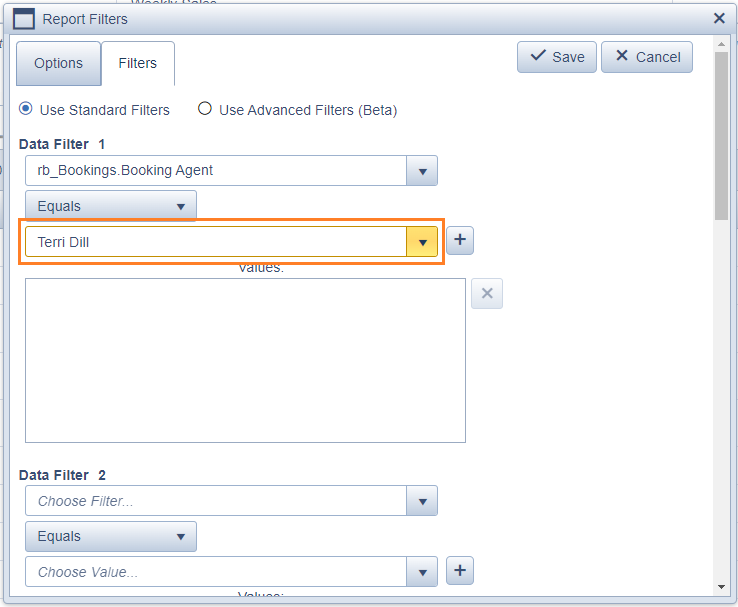
- Use the search box to search for the new agent and click their name.
- Next click the plus (+) icon to the right of the search box to add the agent to the filter.
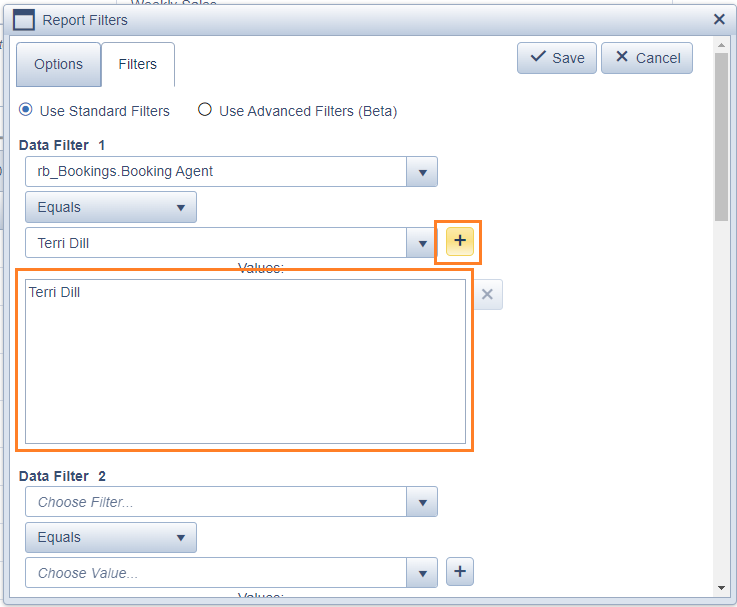
- Click Save twice.
- Locate the new batch again, and click the Distribution (email icon) button.

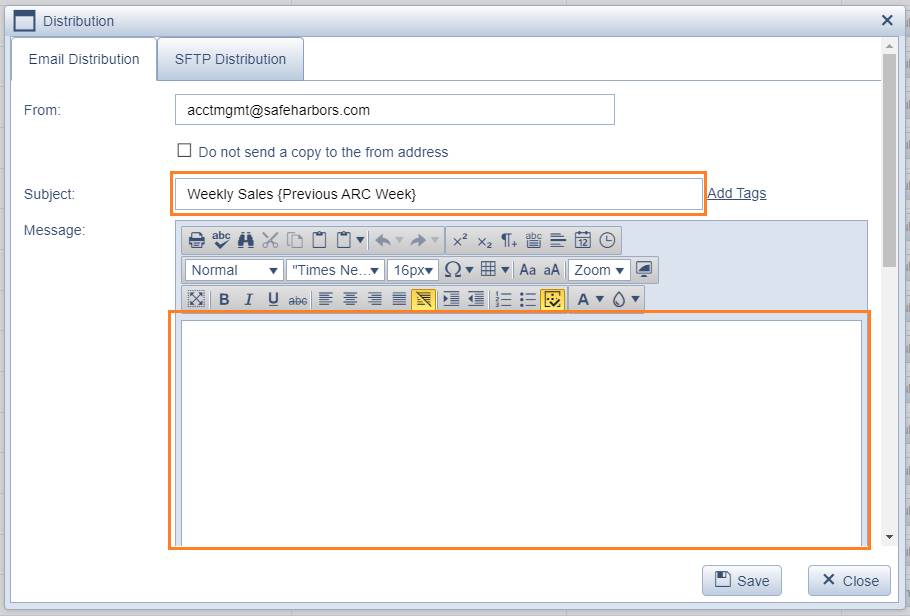
- In the Distribution screen set the Subject to Weekly Sales {Previous ARC Week}, and clear out the body section.
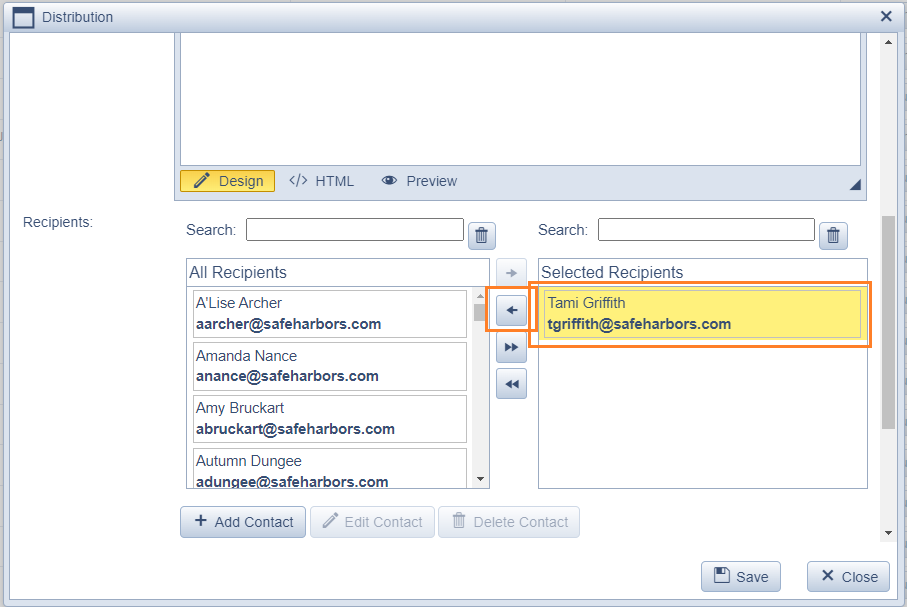
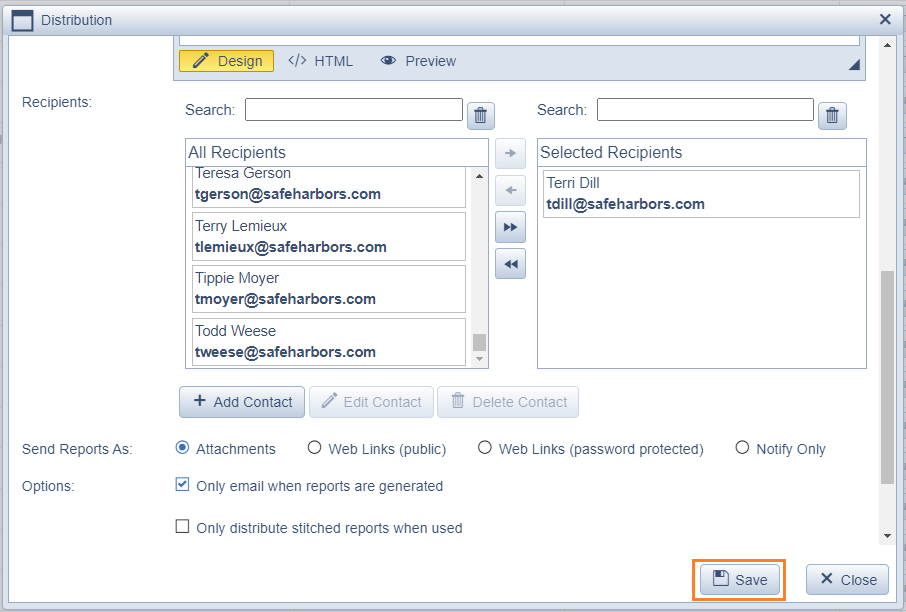
- Scroll down to the Recipients section. Click the existing agent's name and then the back arrow to remove.
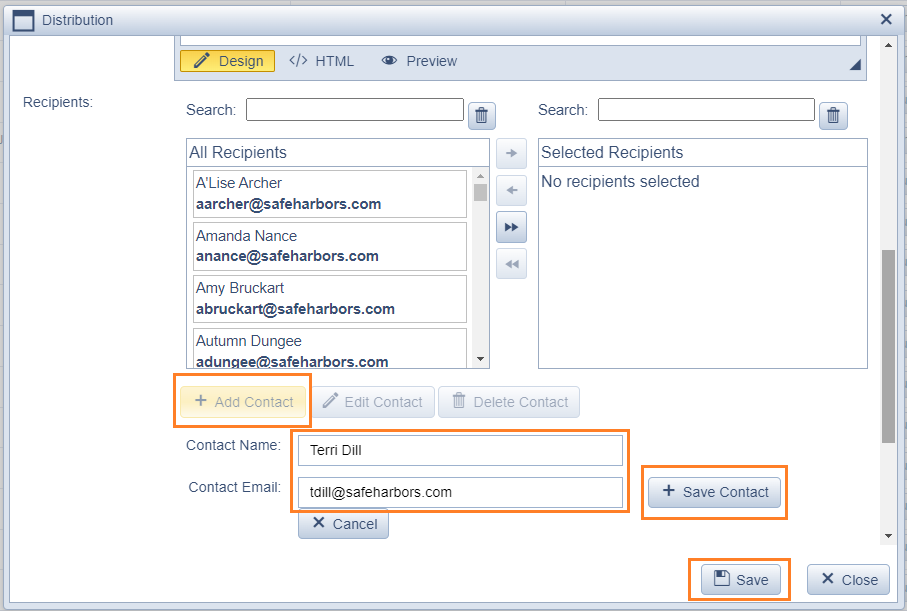
- Click the + Add Contact button and enter the new agent details, and click + Save Contact.
- Scroll down to your newly added contact and click the name, and the forward arrow to add to the distribution.
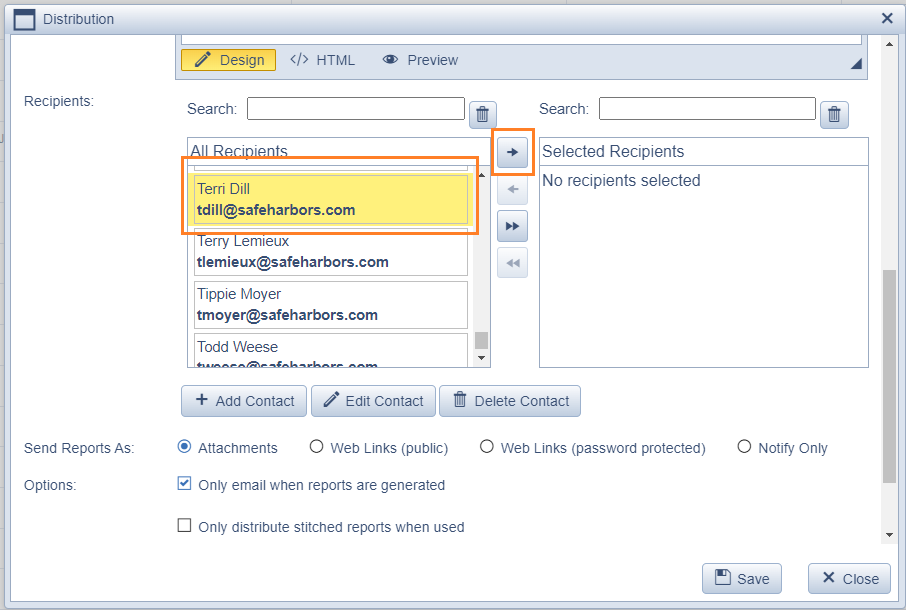
- Click Save.
- Done! A sales reports will now be sent to the new agent every Tuesday at 3:00pm.
